
Staff Access
Staff Access gives someone their own login to your dashboard, so they can help with orders and keep the shop running while you are away.
The role you pick decides which parts of the dashboard open for them — including whether they can reach your payouts.
Open Settings → Staff Access
Section titled “Open Settings → Staff Access”In the left menu, open Settings, then Staff Access under Advanced.
Open it directly: Settings → Staff Access
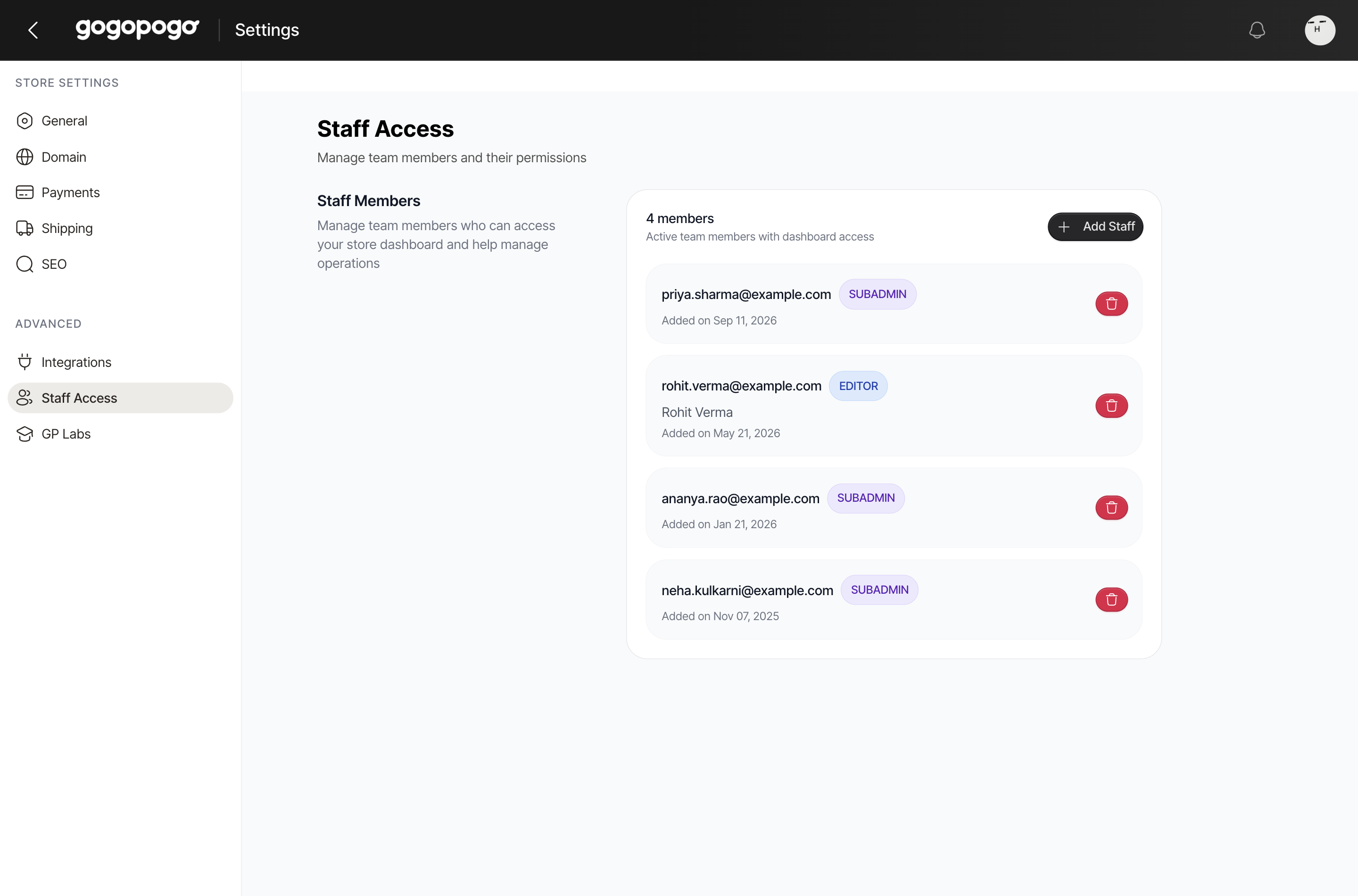
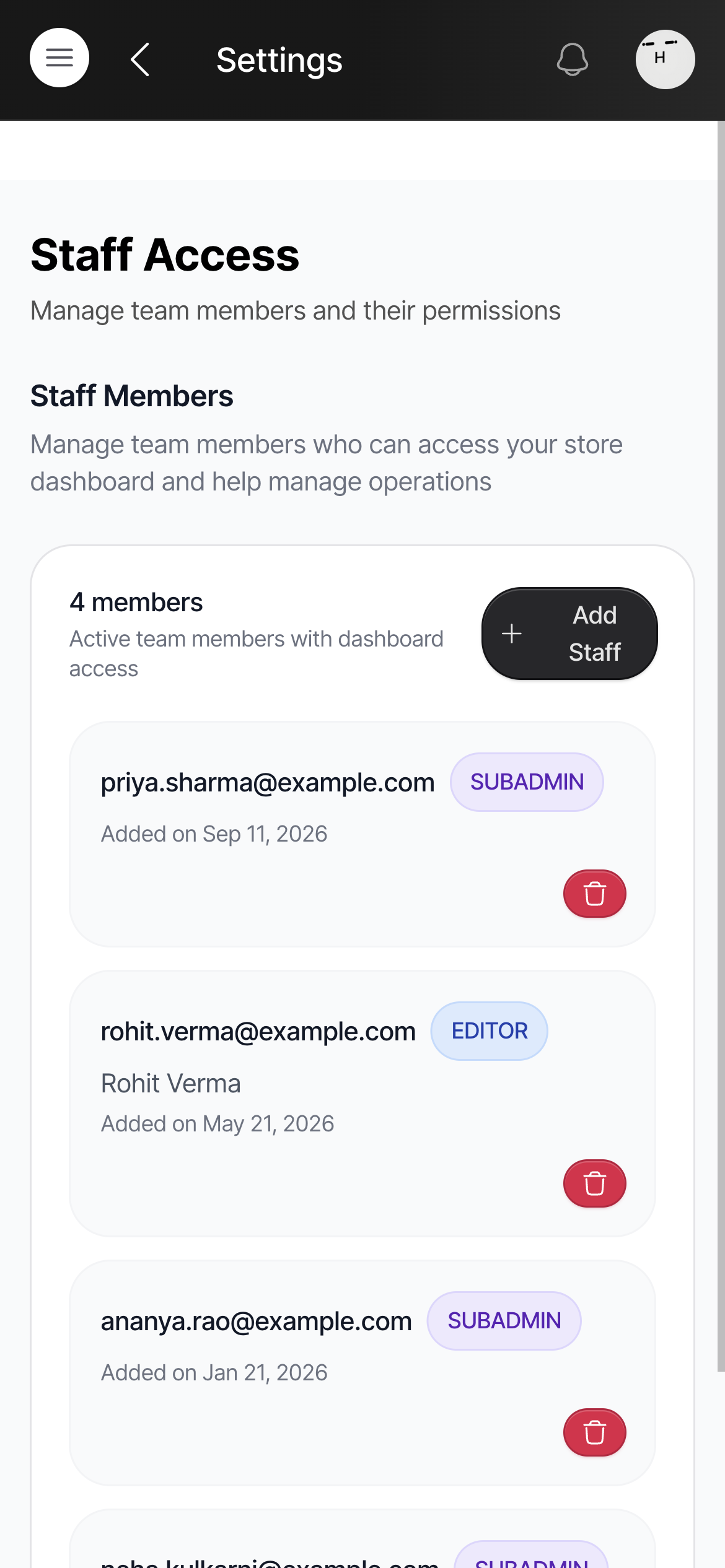
Add someone
Section titled “Add someone”Click Add Staff.
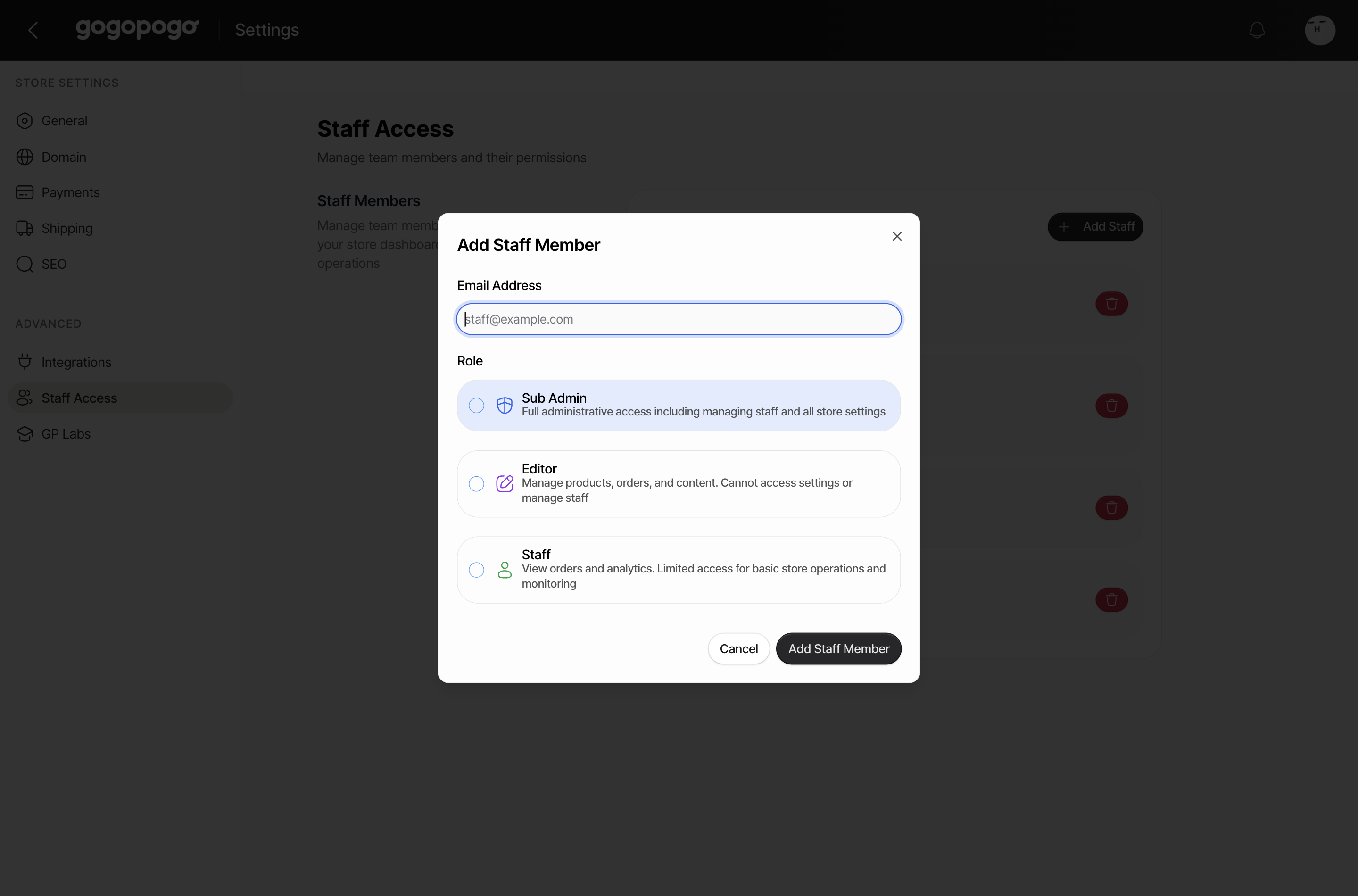
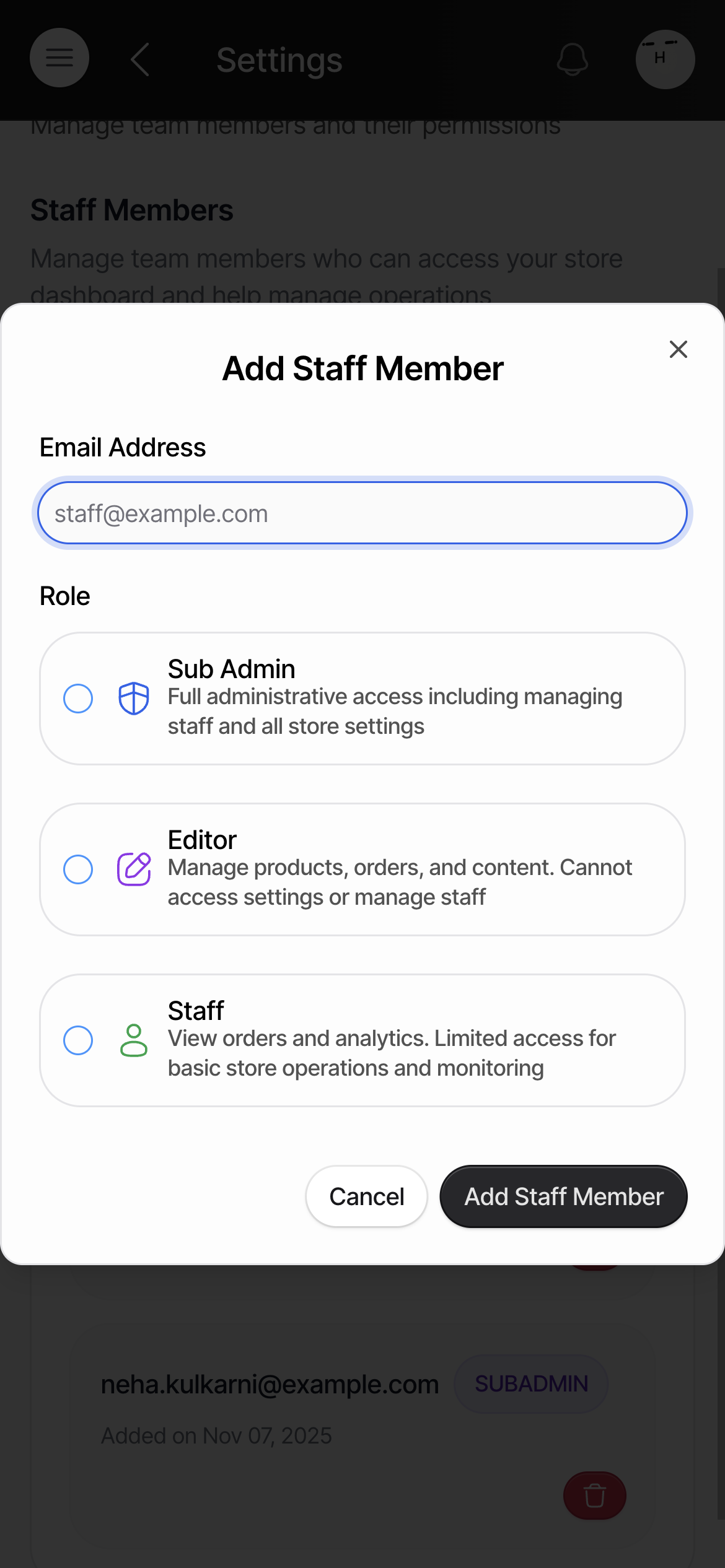
Type their Email Address, choose a Role, then click Add Staff Member. They can be new to GogoPogo — the invitation email takes them through signing up.
Choose the role carefully
Section titled “Choose the role carefully”The role decides what that person sees in the left menu.
| Role | What they can open |
|---|---|
| Staff | Overview, Analytics, UI Config, Orders and Customers. Nothing else. |
| Editor | Everything Staff can open, plus Products, Site Design, Marketing, and Accounts — your Recharge, Payouts and Master statement pages. |
| Sub Admin | Everything Editor can open, plus every Settings page. |
If you do not want someone near your money, choose Staff. Staff is the only role that does not see the Accounts section at all — Recharge, Payouts and Master statement stay hidden from them.
An Editor suits someone who helps you build the shop. They can add products, change the site design and run discounts, but they cannot open your Settings.
A Sub Admin can open every settings page, exactly like you. Give this to someone you would trust with the shop itself.
Remove someone
Section titled “Remove someone”Find their row and click the red bin at the end of it.
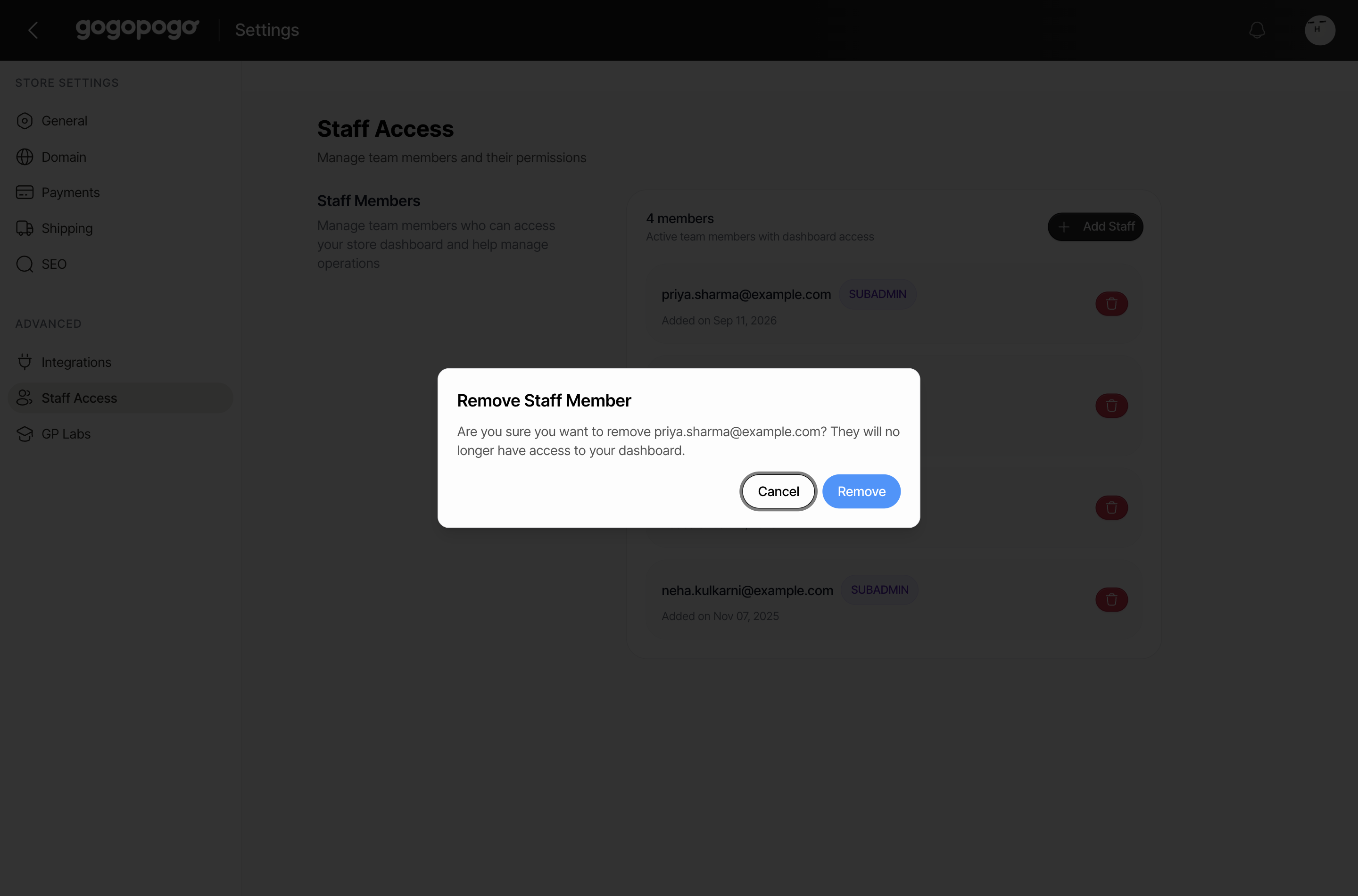
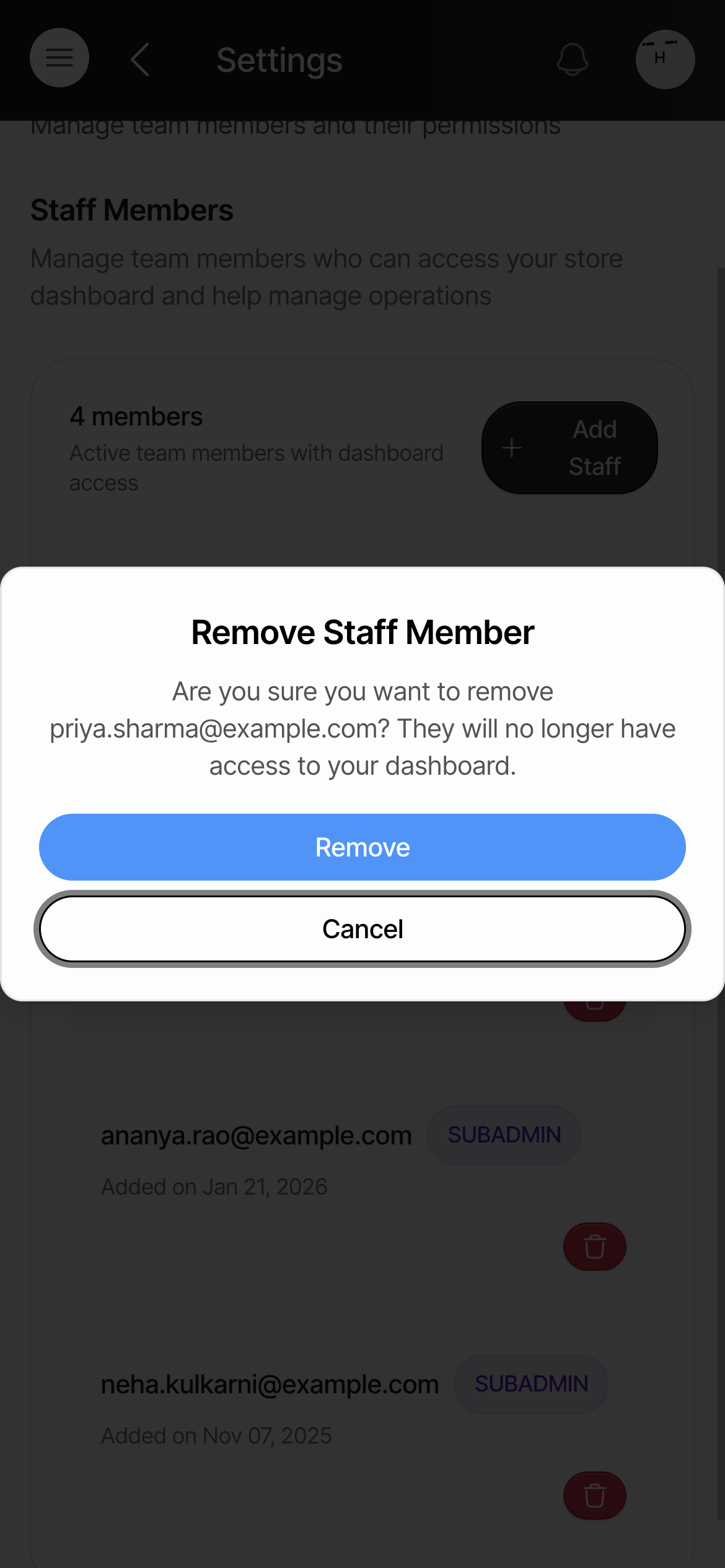
Click Remove to confirm. Their access ends straight away, but their GogoPogo account is not deleted — add the same address again later and they get a fresh invitation.
Only you can add or remove team members. A Sub Admin can open this page, but the dashboard will not let them change the list.
Quick checklist
Section titled “Quick checklist”- Right email address — the one they will sign in with?
- Chosen Staff, if you do not want them to see Payouts? An Editor still can.
- Sub Admin given only to someone you would trust with every setting?
- Told them to look for the invitation email?
- Removed anyone who has stopped helping?
Who can access this
Section titled “Who can access this”Can access: Owner SubAdmin
Cannot access: Editor Staff