
How to Contact GoGoPogo Support
Need help with your store, products, account, or orders? GoGoPogo provides a Support Center where you can create support tickets, communicate with the support team, track updates, and access additional help resources.
Follow the step-by-step guide below to contact GoGoPogo Support and manage your requests efficiently.
Open the Support Center
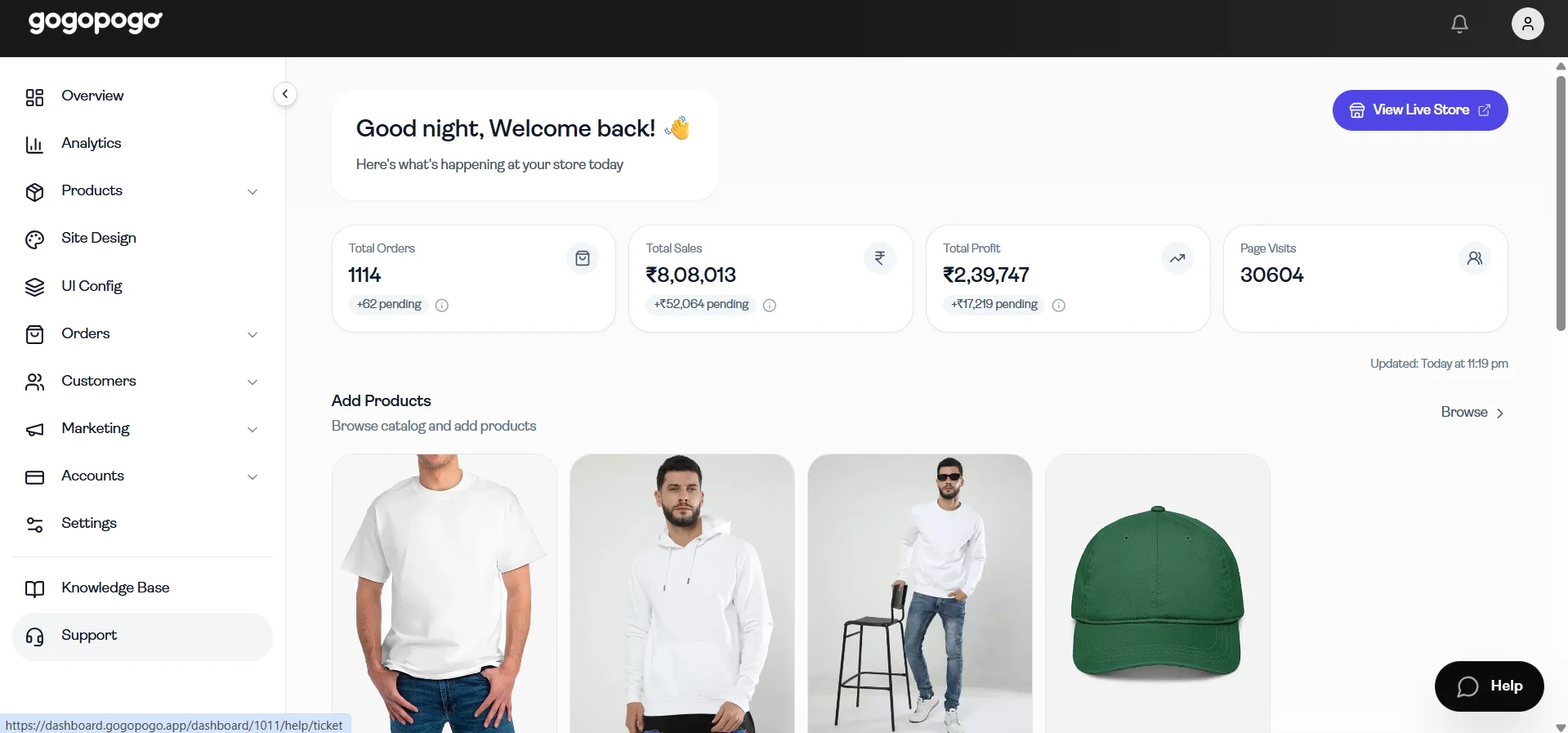
Section titled “Open the Support Center”From the dashboard sidebar, click on Support.
This will open the GoGoPogo Support Center, where you can create tickets, manage support requests, and access additional support options.
View Support Tickets
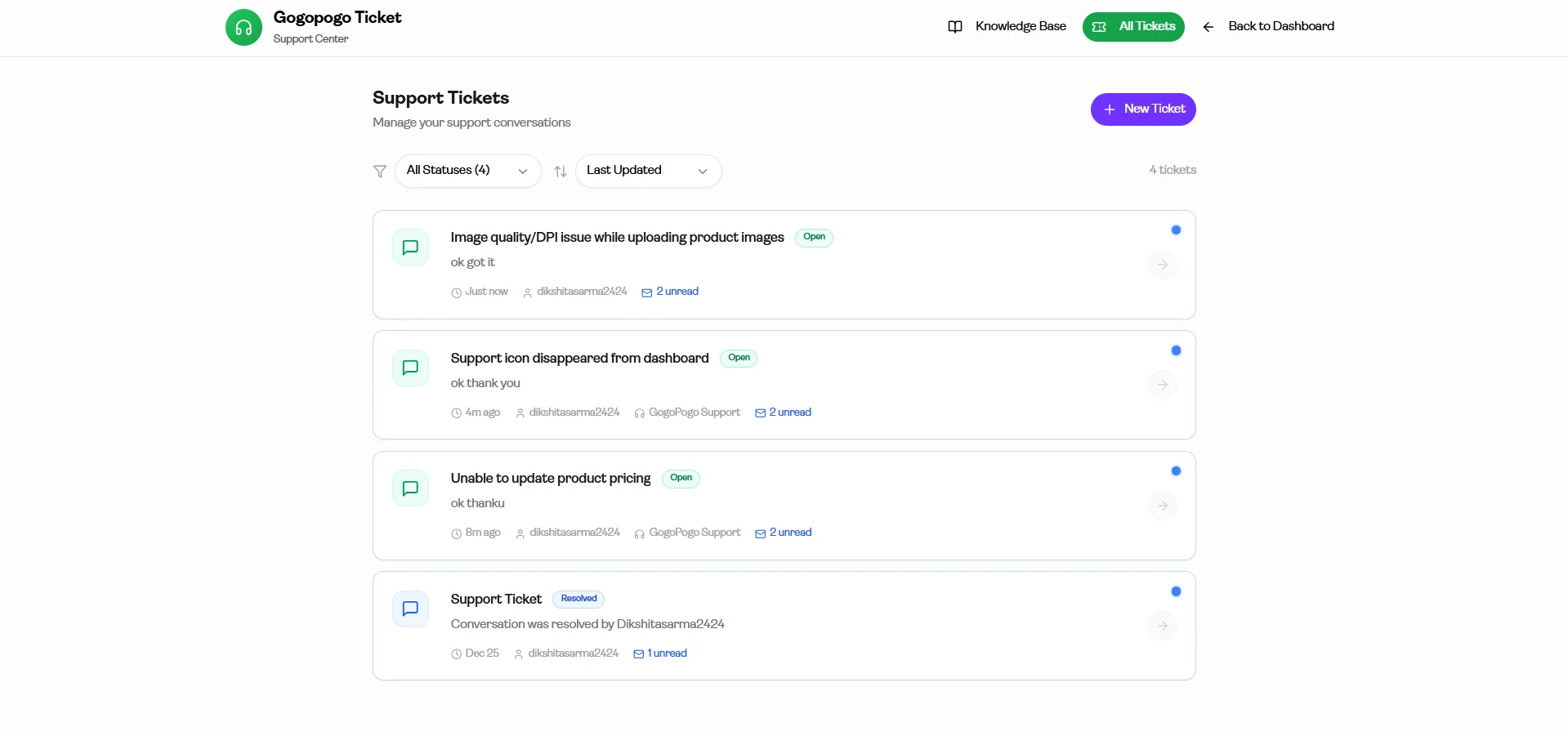
Section titled “View Support Tickets”After opening the Support Center, you will see the Support Tickets page.
This page displays all submitted support requests and helps you track conversations with the support team.
Here, you can:
View existing tickets
Monitor ticket progress
Create new support requests
Understand Ticket Statuses
Section titled “Understand Ticket Statuses”Each support ticket contains a status that helps you track progress.
Common ticket statuses include:
- All Status*– Displays all support tickets regardless of their current progress.*
- Open*– Your support request is active and awaiting resolution.*
- Pending*– Additional action or information may be required.*
- Resolved*– The issue has been successfully addressed.*
- Closed*– The support request has been completed.*
These statuses help you understand the progress of your submitted tickets.
Use Ticket Filters
Section titled “Use Ticket Filters”The Support Tickets page also includes filters to help organize support requests.
Available filter options may include:
- Status*– Filter tickets based on current progress*
- Last Updated*– View recently updated tickets*
- Date Created*– Sort tickets by creation date*
Using filters makes it easier to find and manage multiple tickets.
Create a New Support Ticket
Section titled “Create a New Support Ticket”To contact the support team, click the New Ticket button.
This opens the support request form where you can submit a new issue or inquiry.
Enter Ticket Details
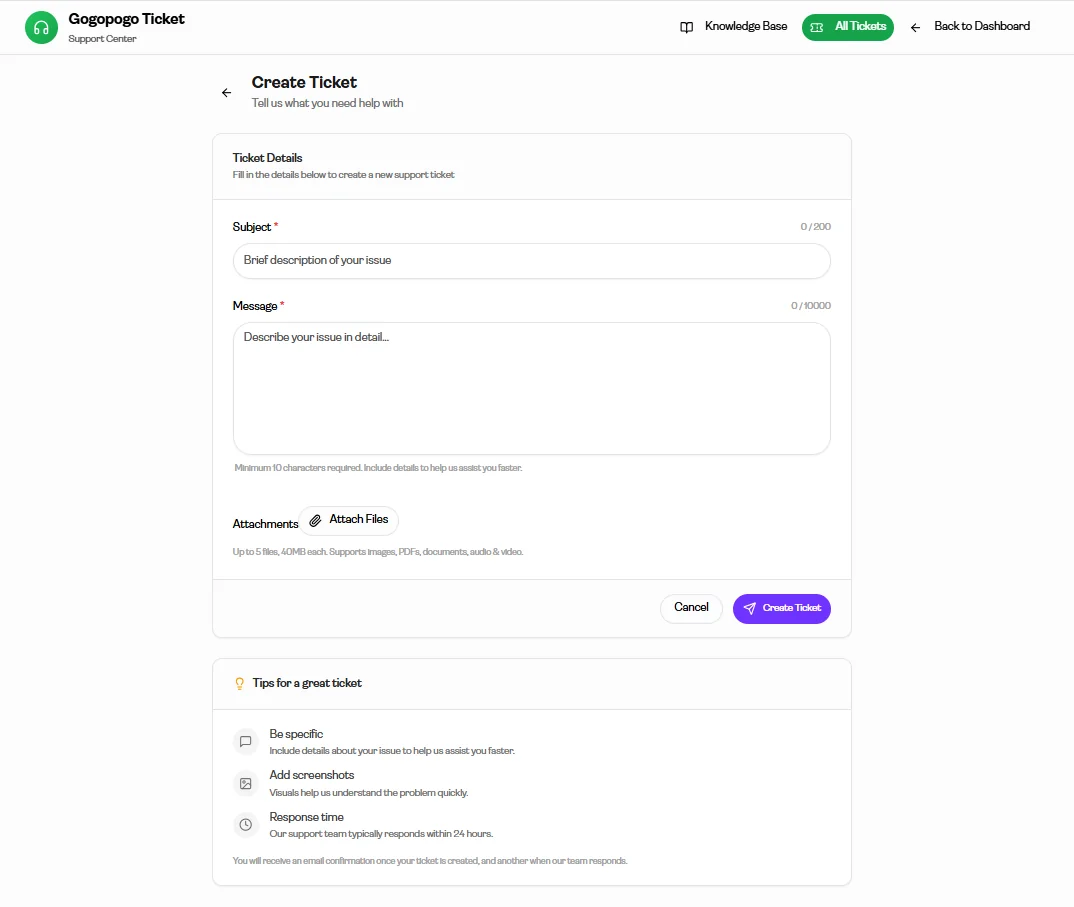
Section titled “Enter Ticket Details”In the Create Ticket page, enter the required information.
You can add:
Subject*– A short title describing the issue*
Message*– A detailed explanation of your concern*
Providing clear and accurate details helps the support team assist you more effectively.
Upload Supporting Files
Section titled “Upload Supporting Files”If required, upload files to provide more context about the issue.
You can attach:
Screenshots
Images
PDFs
Documents
Attachments can help the support team better understand the issue.
Submit Your Ticket
Section titled “Submit Your Ticket”After filling in the required information, click Create Ticket.
Once submitted, your request will appear in the Support Tickets section where you can monitor updates and responses.
Open a Ticket and View Replies
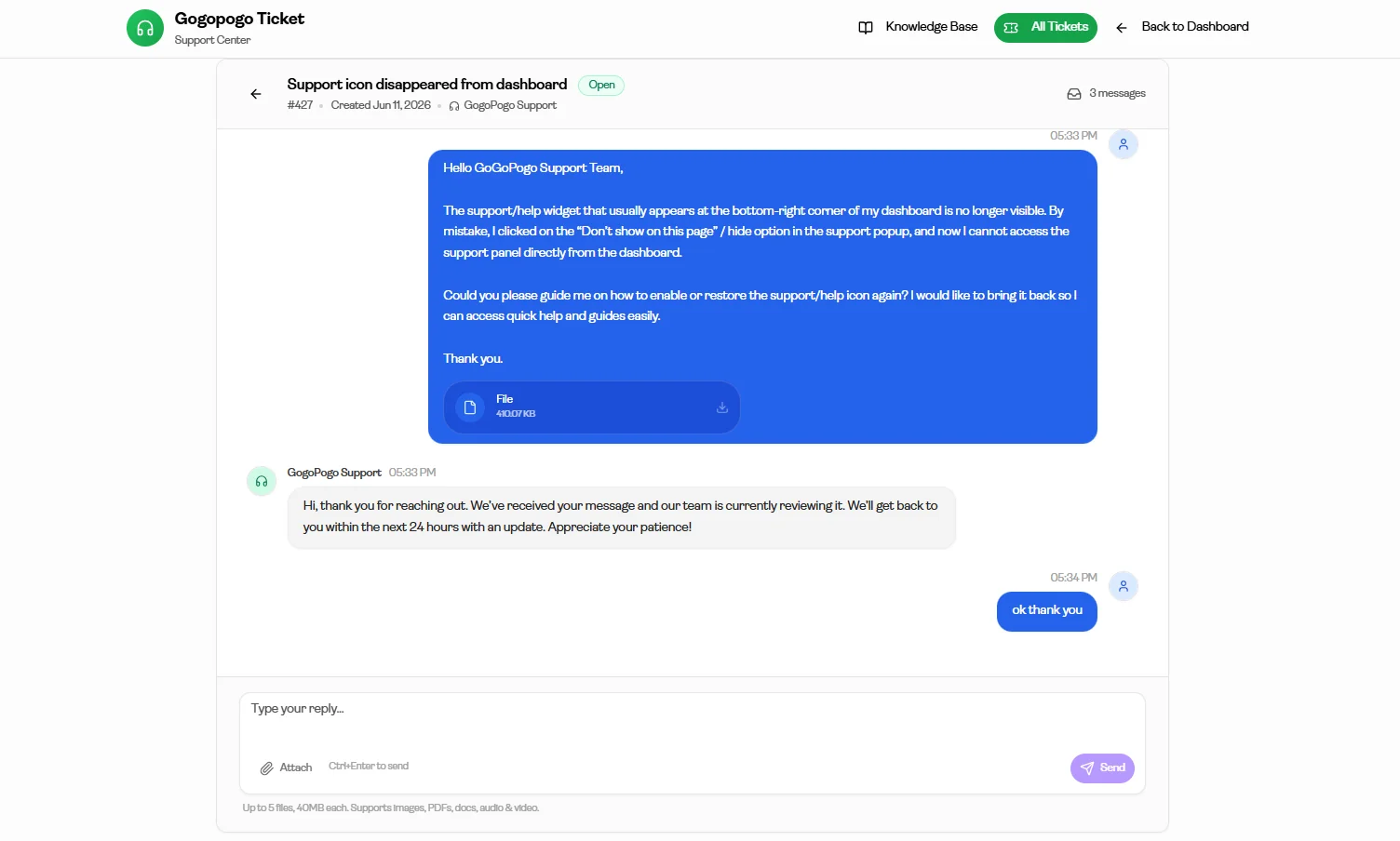
Section titled “Open a Ticket and View Replies”Click on any ticket from the Support Tickets page to open the conversation.
Inside the ticket, you can:
View replies from theGoGoPogo Support Team
Read previous messages and updates
Reply directly to support
Attach additional files if needed
Use the message box at the bottom of the page to continue the conversation.
Access the Knowledge Base
Section titled “Access the Knowledge Base”For additional support and resources, click on Knowledge Base.
This option is available within the Support interface and provides access to additional support tools and resources.