
Understanding the All Orders Page
1. Overview
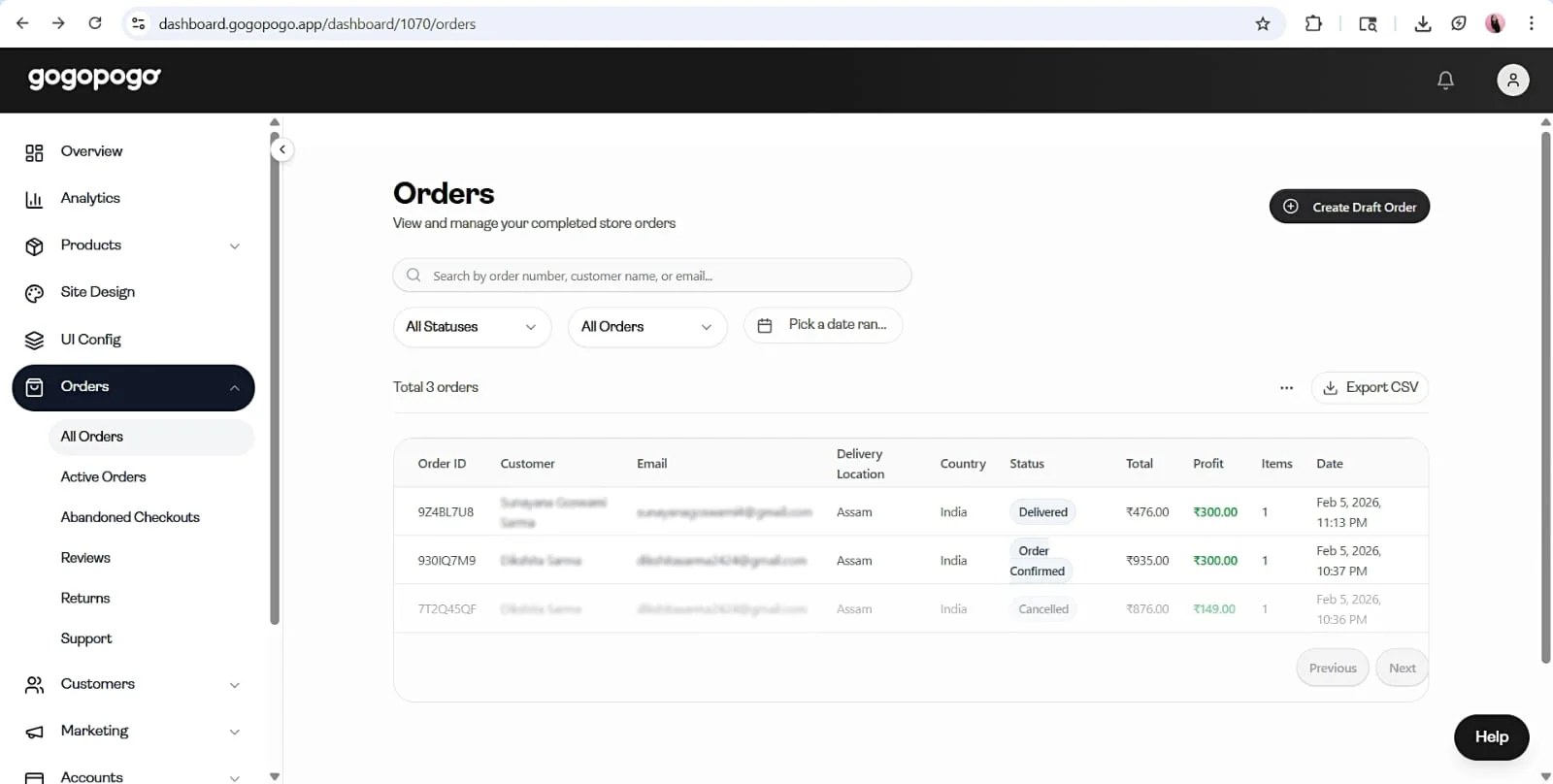
Section titled “1. Overview”The All Orders page shows all orders in your store in one place. From here, you can quickly check order status, view customer details, and take basic actions.
You can:
- View all orders
- Track their status
- Perform basic actions
2. Orders Table
Section titled “2. Orders Table”Each row in the table represents a single order.
Key fields include:
- Order ID – Unique identifier for the order
- Customer – Customer name
- Status – Current order status (e.g., Processing, Shipped, Delivered)
- Payment Mode – Prepaid or Cash on Delivery
- Total / Profit – Order value and earnings
Additional details like email, location, and date may also be visible.
This table is meant for quick scanning, not detailed management.
3. Search & Filters
Section titled “3. Search & Filters”Use these tools to quickly find specific orders:
- Search bar
- Search by Order ID, customer name, or email
- Filters
- Status (e.g., Pending, Processing, Shipped, Delivered, Cancelled)Order type (All Orders, Active Orders, Archived Orders)Date range
- Order count
- Displays total orders based on applied filters
These options help you locate orders without scrolling through the entire list.
4. Export Orders
Section titled “4. Export Orders”You can download your orders as a CSV file.
- Click Export CSV
- Use the column settings (⋯ menu) to:
- Select which columns to includeReorder columnsRename columns if needed
This is useful for reporting or external use.
5. Viewing Order Details
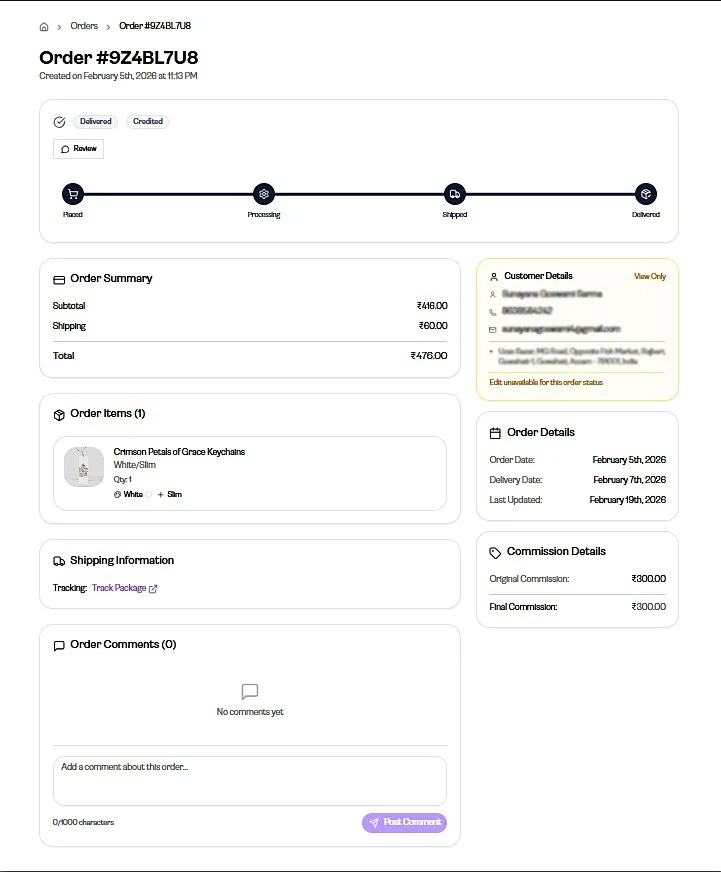
Section titled “5. Viewing Order Details”To see complete information about an order:
Click on any order to view full details and manage it.
This opens the order details view where you can see items, customer information, shipping details, and more.
6. Draft Orders
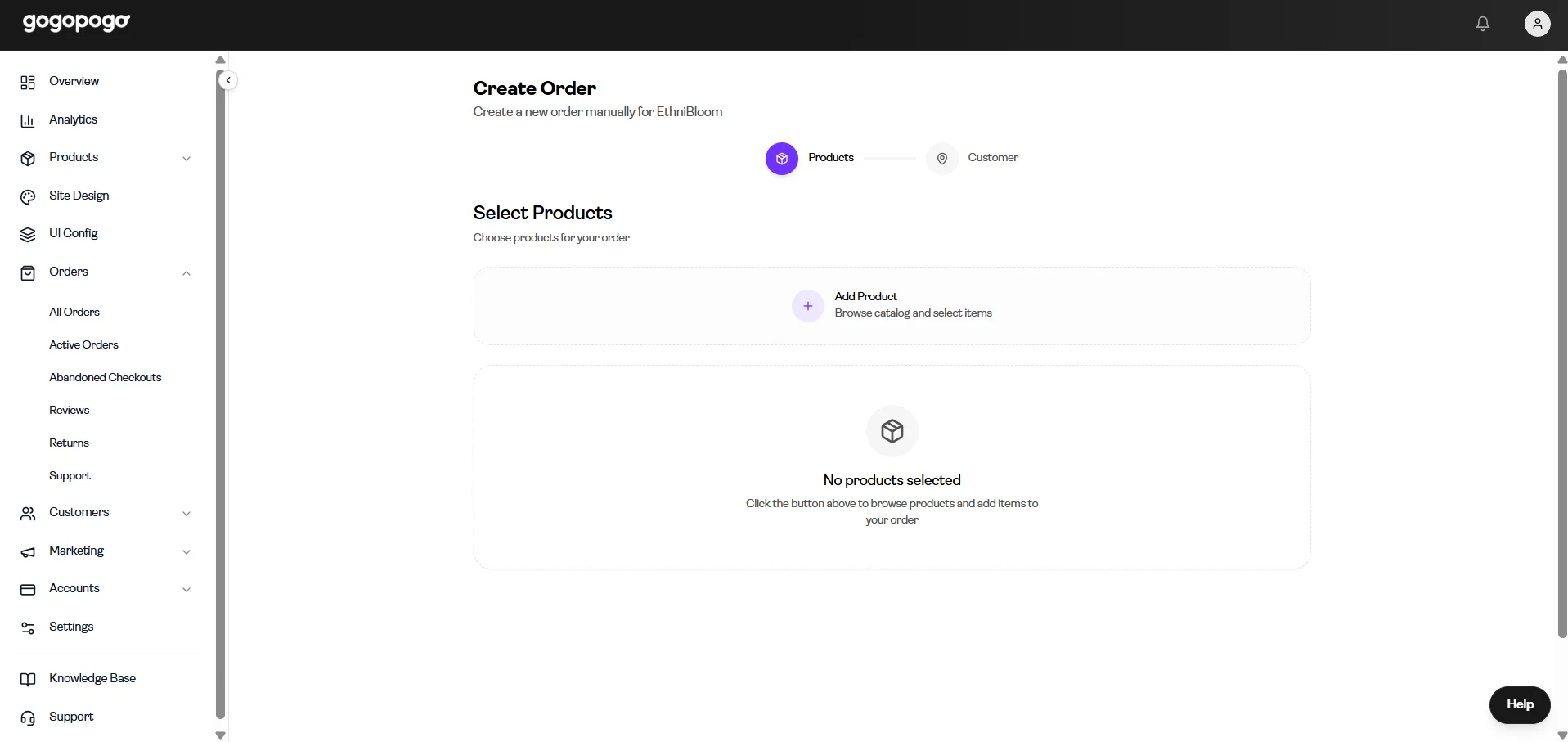
Section titled “6. Draft Orders”You can create orders manually using the Create Draft Order button.
Use cases:
- Orders received via WhatsApp
- Custom or manual orders
What you can do:
- Add products to the order
- Enter customer details
- Send a payment link
- Convert the order to Cash on Delivery (COD)
7. Boundaries
Section titled “7. Boundaries”This page is designed for quick viewing and basic actions.
It does not cover the full order lifecycle or advanced features like fulfillment, returns, or detailed processing.
For complete order management, open the order details view by clicking on a specific order.